sepioo® On Premise installation and update on Windows using Docker Desktop
About sepioo® On Premises installation
Sepioo® On Premises is often used as a solution, and the process is easiest and fastest when using Docker Desktop to deploy containers directly on a Windows machine.
This approach requires the machine to have access to the internet to download all the required files for the container deployment
Installing Docker Desktop
We mostly use Docker Desktop, and it is a free software for small companies. It offers a UI to manage containers once deployed, monitor them and also extract logs if needed.
First download and run Docker Desktop.
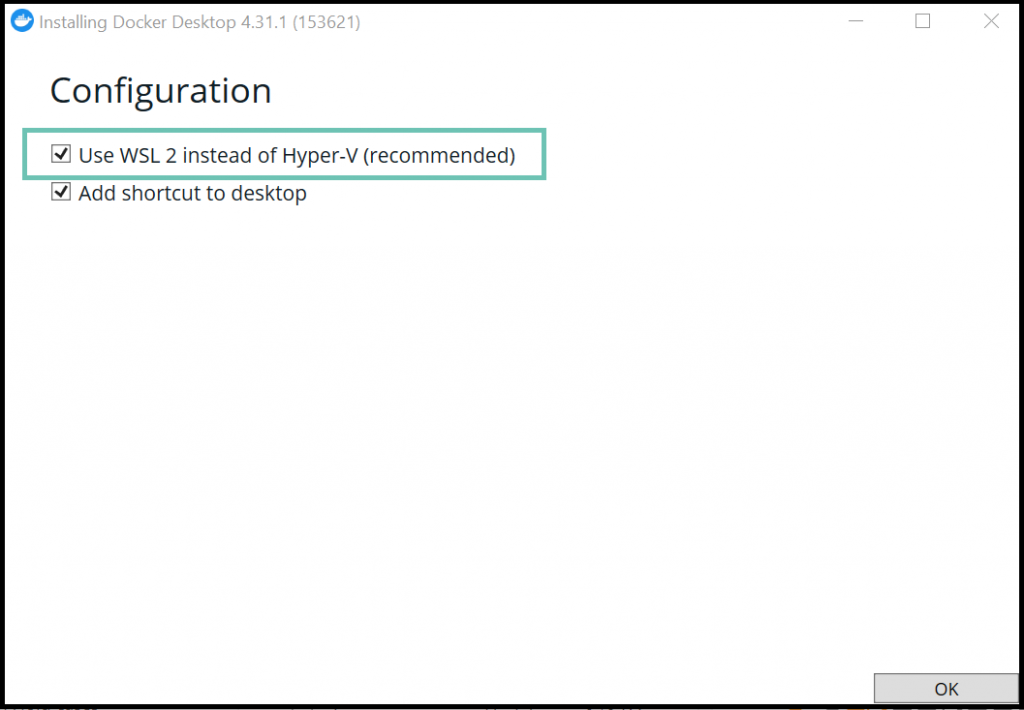
The first window will have a very important checkbox: “Use WSL 2 instead of Hyper-V” and this must be checked.
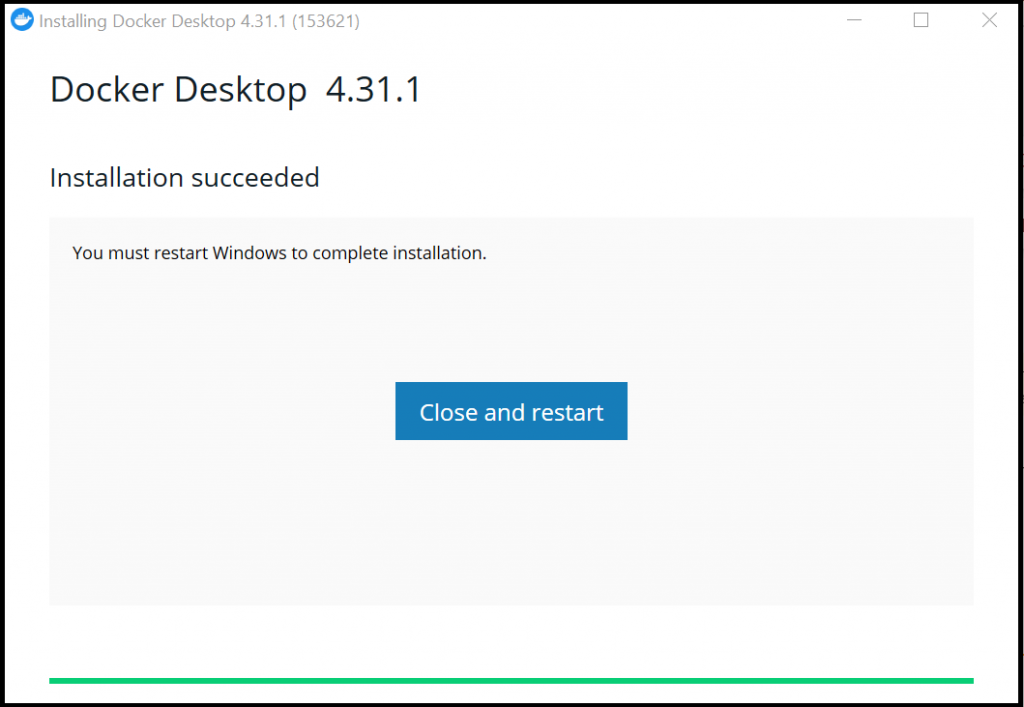
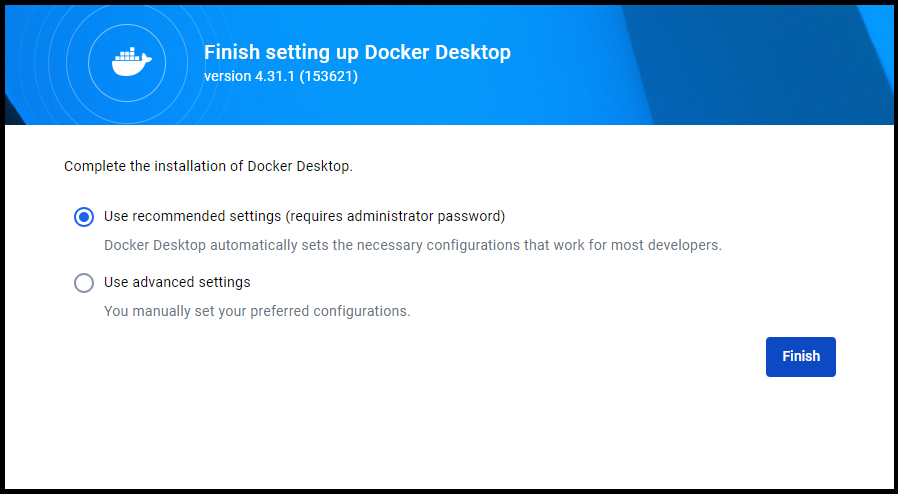
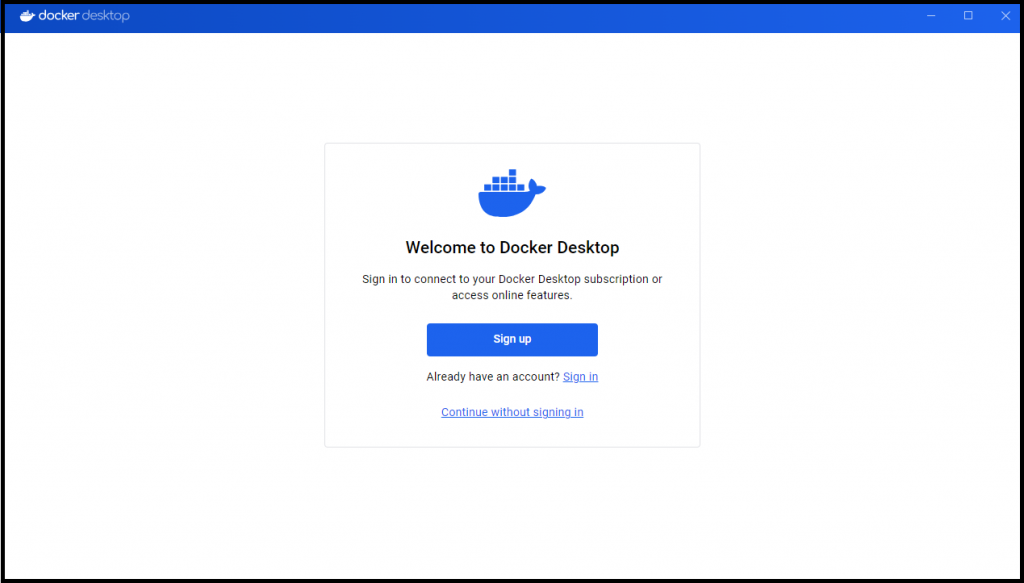
The following steps are simple and standard installation process which also include logging in/registering a user for Docker Desktop
Preparing the docker-compose file
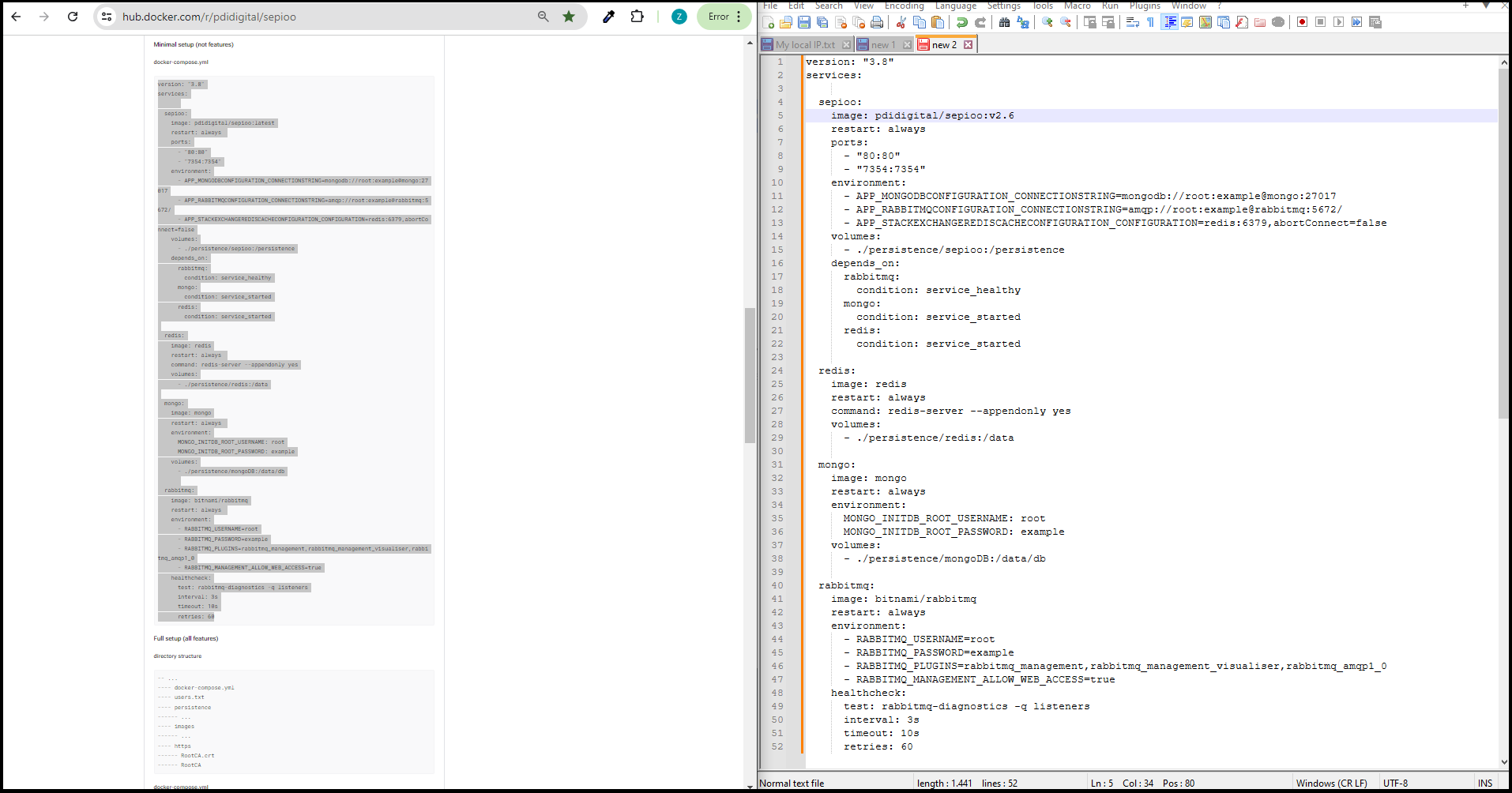
Any deployment of sepioo containers requires a docker-compose file which can be copy pasted from sepioo docker page and saved locally on the machine which will be used.
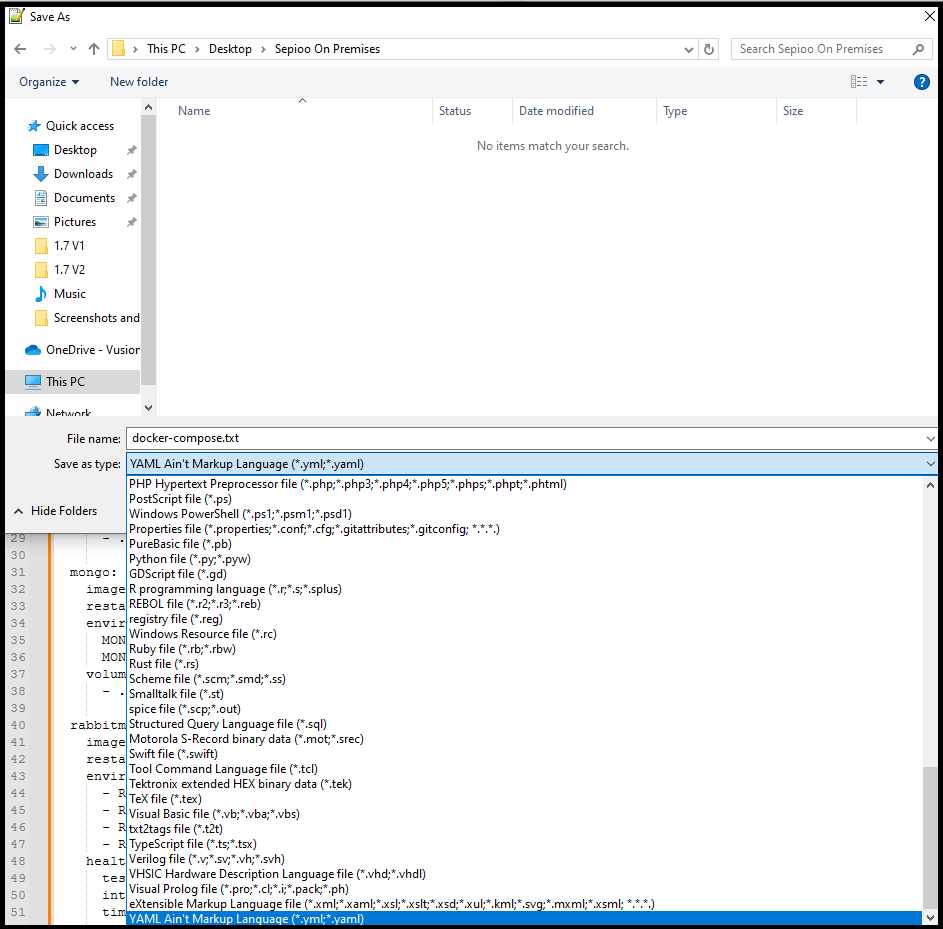
The file type needs to be yaml, and any simple text editor can be used for this. In the example images, a Notepad++ is used.
The file is best to be in a new folder where the entire installation will be located.
This “simple” docker-compose” file will deploy a basic installation without any custom settings which are sometimes required.
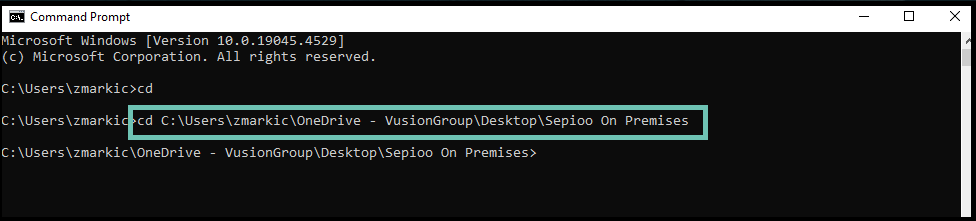
In order to compose the containers, the command prompt needs to be launched
Use the “CD” command to the location of the docker-compose.yaml file
At this point, we need to log in to the internal registry of sepioo. This is mandatory to pull the new version of sepioo. The process is described in our internal portal along with the page to create the robot. This will provide us credentials.
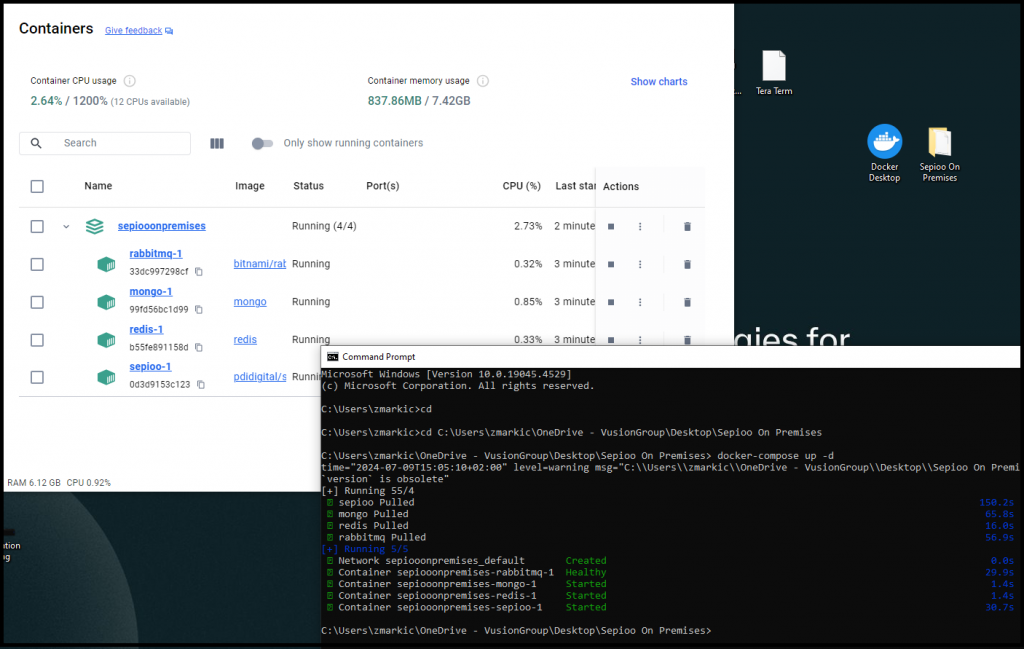
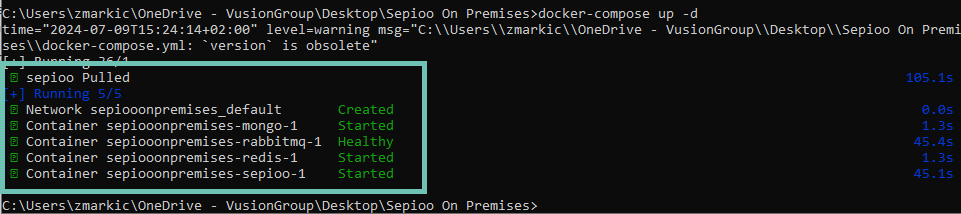
Run the “docker-compose up -d” command to deploy the containers.
This will make the system start pulling the necessary files for the installation
After some time (depending on the capability of the internet connection), the containers will be created, and started automatically.
Their status can be seen in Docker Desktop UI.
Accessing and licensing the sepioo On Premise installation
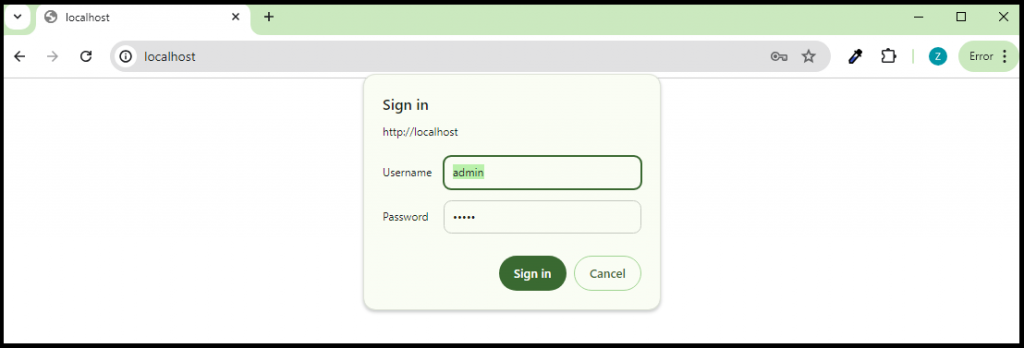
sepioo can now be accessed by simply opening the “http://localhost/” in the browser.
The login credentials are:
admin admin
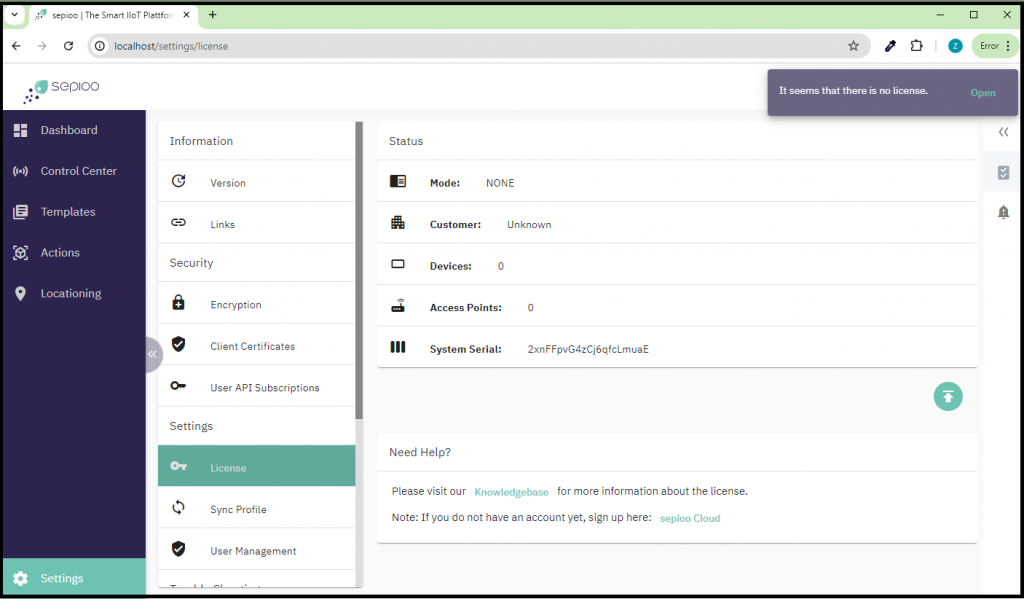
In order for sepioo On Premises to work, a license is needed. This is given by our Service Team and more about this can be read in the dedicated article:
sepioo On Premises needs to be updated manually in order to have the latest version and benefit from new features.
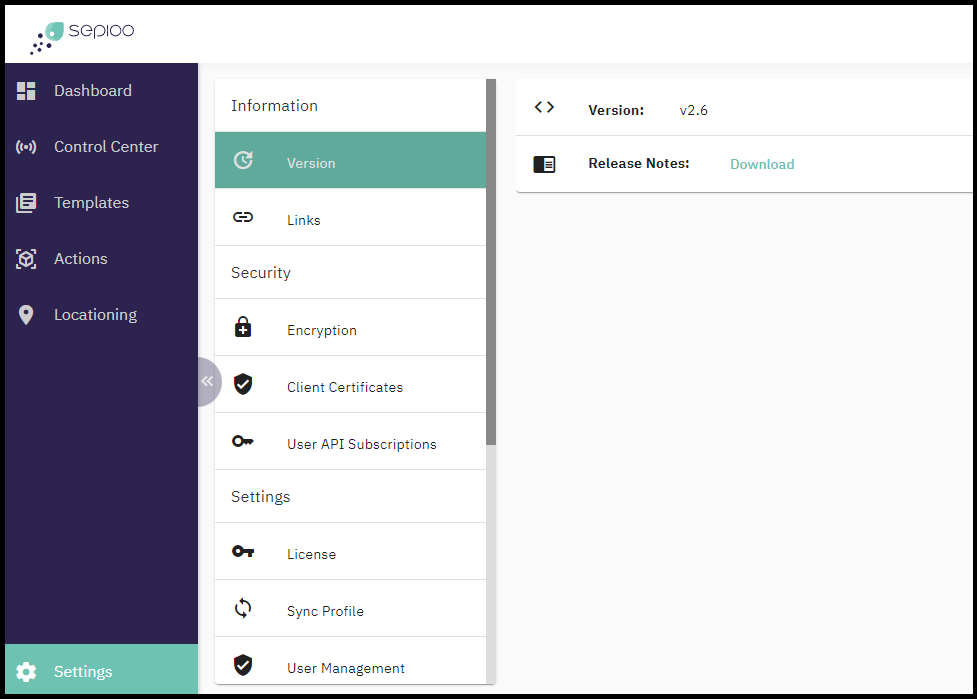
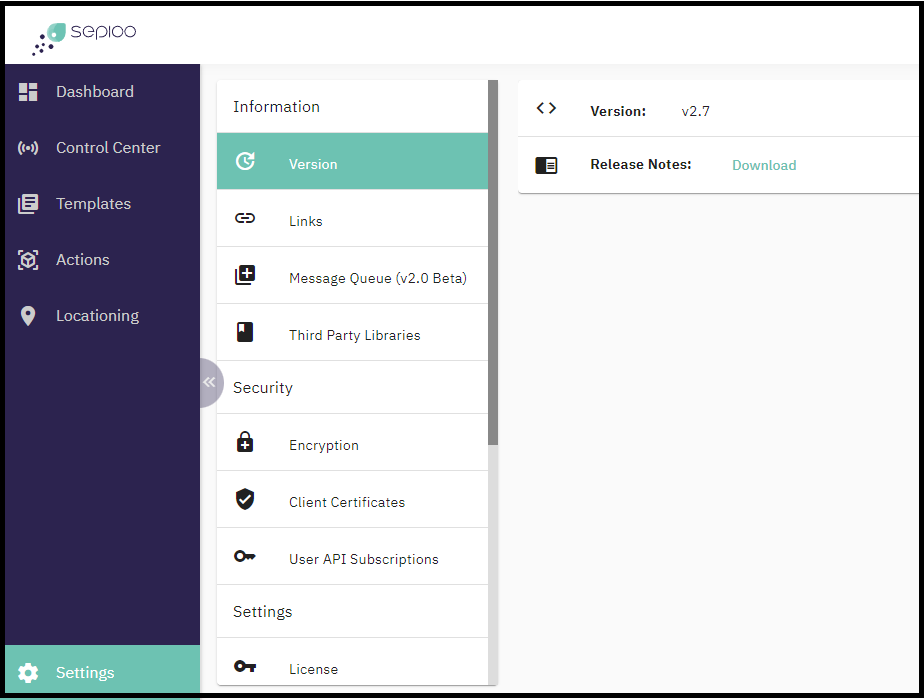
Current sepioo version can be checked in the settings part of the platfom by clicking on “Version”
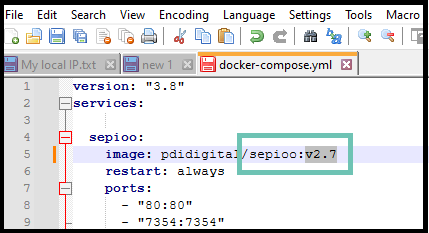
Next step is the recommended way to upgrade sepioo. The docker-compose file should have a dedicated version in it, the default value is “latest”
Using the “latest” tag can be done, however it can trigger an unplanned/unwanted updates of the system if newer version is available and “docker-compose up” command is used for whatever reason.
Using the dedicated version tag will provide the chance to plan the updates when it is possible and good.
In our test images, the version of sepioo is v2.6, and we want to update it to v2.7, so an edit of the docker-compose file from “latest” to the “v2.7” is needed.
Save the file and open the cmd.
First, we need to stop the containers. Use the “docker-compose down” command to do this
At this point, we need to log in to the internal registry of sepioo. This is mandatory to pull the new version of sepioo. The process is described in our internal portal along with the page to create the robot. This will provide us credentials.
After the containers are stopped and login was performed, running the “docker-compose up -d” command will start pulling the new sepioo version.
Once the files are pulled, the containers will be started again, and sepioo is updated.
This process does not require re licensing or managing any of the entities already created and active on sepioo.
Conclusion
Installing and updating sepioo on Windows using the Docker Desktop is fast, easy and user friendly. It does not require Virtual Machines, or additional software installations.
For any and all issues in this process, please check the rest of our knowledgebase, or contact us on support@sepioo.com